

Ctrl-Alt-Health
Reboot your digital practice
Welcome to Ctrl-Alt-Health, the Contensive blog where healthcare meets digital innovation. We help medical practices take control, reset what’s not working, and optimize their online presence to attract and retain more patients. From website design and SEO to patient experience and automation, Ctrl Alt Health delivers practical insights for running a healthy, high-performing digital practice.
The 2023 Banner Still Running on Your Homepage
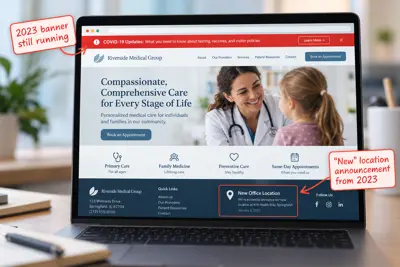
During this round's audits, we came across a homepage still displaying a sitewide "COVID-19 Updates" banner. Scroll to the footer of the same site, and the most prominent piece of content is a "New Office Location" announcement — dated January 3, 2023. Nearly four years old, sitting front and center, still labeled "New."
Nobody meant for either of these to still be there. That's exactly the problem.
Why stale content is a bigger deal than it looks
A homepage is often the first impression a new patient forms of a practice — and an outdated banner sends a signal that has nothing to do with the quality of care inside the building. To a patient, an old COVID banner or a years-stale "new location" post reads as: nobody's paying attention to this site. Fair or not, that impression can carry over to expectations about the practice itself.
Google notices too. Search engines factor in how current and actively maintained a site appears to be. A homepage that hasn't been touched in years — evidenced by dated, time-bound content still sitting in prominent placement — can quietly work against rankings, even when the rest of the site's technical SEO is solid.
The tricky part is that stale content is invisible to the people closest to it. Staff and providers walk past that banner every day without seeing it anymore. It takes an outside look — or a deliberate audit — to notice what's actually still live.
The usual culprits
Beyond COVID banners and outdated location announcements, this pattern shows up in a few predictable places:
- "Now accepting new patients" banners left running long after the practice stopped needing to say so
- Promotions or specials with an expiration date that's come and gone
- Old provider bios for physicians who've since left the practice
- Outdated hours or holiday notices that never got taken down after the holiday passed
- Old news/announcement posts pinned to the homepage long past their relevance
Individually, each one seems minor. Together, they add up to a homepage that quietly tells patients and Google the same thing: this site isn't being actively managed.
The fix: a 15-minute content audit
This doesn't require a developer or a redesign — just a deliberate look:
- Walk the homepage top to bottom, reading it as if seeing it for the first time.
- Check the footer — this is where outdated announcements tend to get "parked" and forgotten.
- Flag anything time-bound: dates, "new" claims, promotions, seasonal notices.
- Remove or update anything that's expired, and note anything that needs a real refresh (like a provider bio) for follow-up.
Put a reminder on the calendar to repeat this every few months. Stale content isn't a one-time cleanup — it's the natural byproduct of a site nobody's assigned to revisit regularly.
The easy, sympathetic fix
Of everything covered in this series, this is one of the simplest to act on. It doesn't require technical knowledge, a developer, or access to a Google dashboard login — just five minutes of attention and the willingness to delete or edit a stray banner. It's also one of the easiest things to let slide indefinitely, precisely because nothing breaks when it's ignored. The site still loads. The phone still rings. It just quietly under-performs.
Request your free website audit →
We'll flag stale content alongside title tags, schema markup, GBP category, and your booking path — no cost, no obligation.
The One Google Business Profile Setting Working Against You
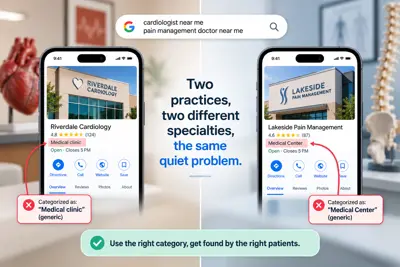
Two practices, two different specialties, the same quiet problem.
While auditing websites for this round, we found a cardiology practice whose Google Business Profile was filed under the generic category "Medical clinic" — not "Cardiologist." A few audits later, a pain management practice turned up filed under "Medical Center" instead of "Pain management physician." Every competitor in that second practice's map pack was correctly categorized — which is part of why a paid ad was currently outranking the practice for its own specialty.
Neither practice did anything wrong on purpose. This is one of the easiest Google Business Profile settings to get wrong, and one of the easiest to miss once it's set.
What the GBP category actually controls
When someone searches "cardiologist near me" or "pain management doctor in [city]," Google doesn't read a practice's website to decide who to show — it leans heavily on the category set in the practice's Google Business Profile. That category is one of the strongest signals Google uses to decide which searches a practice is a match for, especially in the local "map pack" results.
A generic category like "Medical clinic" or "Medical Center" isn't wrong, exactly — but it's vague. It tells Google "this is a doctor's office" without telling it which searches this specific practice should win. Meanwhile, competitors who took the extra step to select the specific specialty category show up for the searches that actually convert: patients looking for that specialty, in that area, right now.
This has nothing to do with review count or star rating. A practice with excellent reviews and the wrong category can still lose map-pack placement to a lower-rated competitor who's categorized correctly.
How to check your own
- Go to Google Business Profile (business.google.com) and sign in with the account that manages the listing.
- Click Edit profile → Info (sometimes labeled "About" in newer versions).
- Look at the Category field — there's a primary category and room for secondary categories.
- Ask: does the primary category name the actual specialty, or a generic catch-all?
It's worth checking secondary categories too. A practice can (and often should) hold more than one — a primary specialty plus related services — as long as each one is accurate.
Fixing it
This is one of the rare technical SEO fixes that doesn't require a developer. Changing the category takes a few clicks inside the Google Business Profile dashboard, once logged into the correct account. The catch is access: it has to be done from the physician's or practice owner's own GBP login, since Google ties the listing to whoever originally claimed it.
If no one on staff is sure who has that login, that's worth tracking down before anything else — it's usually needed for review responses, hours updates, and photos too.
Why this one is easy to miss
Nobody sits down and deliberately picks the wrong category. It usually happens years earlier, when the listing was first claimed — often quickly, often by whoever was available that day — and it's never been revisited since. Specialties can also shift over time (a practice that started as general medicine and grew into a specialty focus, for example) without anyone circling back to update the category that matches.
It's a five-minute check with an outsized effect on which patients find the practice in the first place.
Request your free website audit →
We'll check your Google Business Profile category alongside your title tags, schema markup, and booking path — no cost, no obligation.
Title Tags: The Search Result You're Handing Google to Write for You
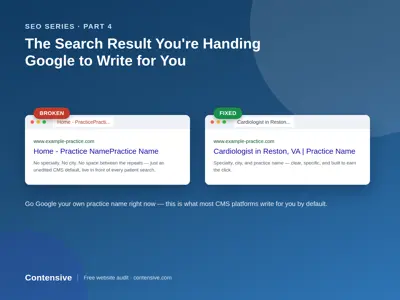
Go ahead — open a new tab and Google your own practice's name right now. Look closely at that bold blue line above the URL.
We did this recently while auditing a cardiology practice's website, and here's what came up: "Home - [Practice Name][Practice Name]" — the practice name, run together twice, with no space between them, no city, and no specialty. No one wrote that on purpose. It's what happens when a website platform is left to generate a title automatically, and nobody ever went in and set it.
That one line is one of the most overlooked pieces of real estate a medical practice owns online — and it's often the first thing a prospective patient sees before they ever land on the site.
What a title tag actually is
A title tag is the line of text that shows up in three places at once:
- The bold, clickable headline in a Google search result
- The text on the browser tab when the page is open
- The preview text when the page link is shared or bookmarked
Behind the scenes, it's a single line of HTML (`Your Title Here`) that lives in the page's code, invisible on the page itself. Most website platforms will generate one automatically if a practice never sets it manually — usually by stitching together the page name and the site name. That's exactly how the duplication above happened: an automatic default nobody replaced.
Why it's worth fixing
Google uses the title tag as a strong signal for what a page is about and who it should show it to. A generic, duplicated, or missing title tag makes it harder for Google to understand — and rank — a page for the searches that actually matter, like "[specialty] near me" or "[specialty] in [city]."
It also affects something more immediate: click-through rate. A patient scanning a page of search results is deciding, in about two seconds, which result to click. A title tag that's broken, repetitive, or generic (just "Home" or the practice name with nothing else) gives them nothing to click on — even if the practice would have been a great fit.
What a good title tag looks like
A strong title tag for a medical practice page typically includes three things:
- The specialty or service — what the page is actually about
- The city or service area — where the practice is, matching how patients actually search
- The practice name — for recognition and trust
All of that fits comfortably in roughly 50–60 characters, which is about the point where Google starts truncating the display with "...". A homepage title following this pattern might read something like: "Cardiologist in [City] | [Practice Name]" — specific, readable, and free of duplication.
How to check your own
This takes about ten seconds, no login required:
- Look at the browser tab while the page is open — that's the title tag, right there.
- Check the Google search result for the page (search the practice name, or "[specialty] [city]").
- View page source: right-click anywhere on the page, choose "View Page Source" (or Inspect), and search for ``.
Do this for the homepage first, then for any specialty or service pages. It's common to find the same broken pattern repeated across every page on a site — which means it's usually a one-time fix at the template level, not a page-by-page rewrite.
The bigger picture
Title tags rarely travel alone. In this same round of audits, the practices with duplicated or missing title tags also tended to have incomplete schema markup, inconsistent NAP (name, address, phone) listings, or a booking button that was harder to find than it should be — the exact issues covered earlier in this series. A broken title tag is often the most visible symptom of a site that hasn't had a technical once-over in a while.
The good news: it's also one of the easiest things to fix, once it's been found.
Request your free website audit →
We'll check your title tags alongside schema markup, NAP consistency, and your booking path — no cost, no obligation.
"Book Online" Buttons That Don't Book Anything
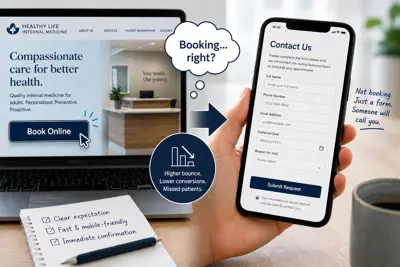
Click "Book Online" on most local practice websites, and here's what actually happens: a contact form opens. Not a calendar. Not a time slot. A form that says, in effect, "leave your information and someone will call you during business hours to actually schedule this."
That's not a design nitpick. It's a mislabeled button — and mislabeled buttons carry a cost that shows up in analytics most practices never look at closely enough to notice.
What we measured, not just observed
In our audit of 80 local practices, more than 8 in 10 offered no true online scheduling. The most common pattern was exactly the one above: a button labeled "Book Online" or "Request Appointment" that led to a static contact form with no calendar, no time-slot selection, and no immediate confirmation of anything beyond "we received this."
From a pure UX standpoint, that's a broken promise at the exact moment of highest intent — the two or three seconds after a visitor decides to try you. From an SEO and analytics standpoint, it's worse than it looks, for a specific reason: a booking action that dead-ends into a generic form produces weak engagement signals. Time-on-page drops, bounce rates on the booking step climb, and the interaction never completes in a way that search engines or your own analytics can register as a successful conversion. You can be doing everything else right — fast site, clean schema, strong reviews — and still be quietly penalized by a booking flow that never finishes what it promised.
The gap between "says booking" and "does booking"
A form isn't nothing. It's meaningfully better than a phone number alone, and we've written about what a missed after-hours request actually costs a practice over time. But a button that visually promises real-time booking and delivers a contact form creates a specific kind of friction: the patient feels the small bait-and-switch, even if they can't articulate why, and practices competing for that same patient increasingly offer the real thing.
The fix isn't necessarily full self-service scheduling into your live calendar — plenty of practices have valid reasons not to open their schedule directly to strangers. The fix is honesty in the interface: label the button for what it does ("Request an Appointment" instead of "Book Online" when it's a request form), and make the request path itself fast, mobile-friendly, and immediately confirmed, so the interaction at least completes cleanly even if a human still does the final scheduling.
What this costs beyond the immediate patient
Every dead-end booking interaction is a data point search engines use to judge how well your site serves the intent it's ranking for. A pattern of visitors clicking a booking button and leaving quickly reads, in aggregate, as a page that didn't deliver on its promise — which can quietly work against you in exactly the local-search competition this whole SEO series has been about. NAP consistency and schema markup get you found. A booking flow that actually completes is what convinces Google — and the patient — that finding you was worth it.
What to check on your own site
Click your own "Book Online" or "Request Appointment" button right now, on a phone, the way a patient would. Ask three questions: Does it feel like booking, or does it feel like filling out a form and hoping? Does it confirm anything before you close the page? Would a stranger, mid-search, trust that this practice will actually call back?
Find out what your booking path is actually doing
Our free audit checks your booking flow alongside NAP consistency, schema markup, and site speed — the same complete pass, free either way, whether you work with us or not.